|
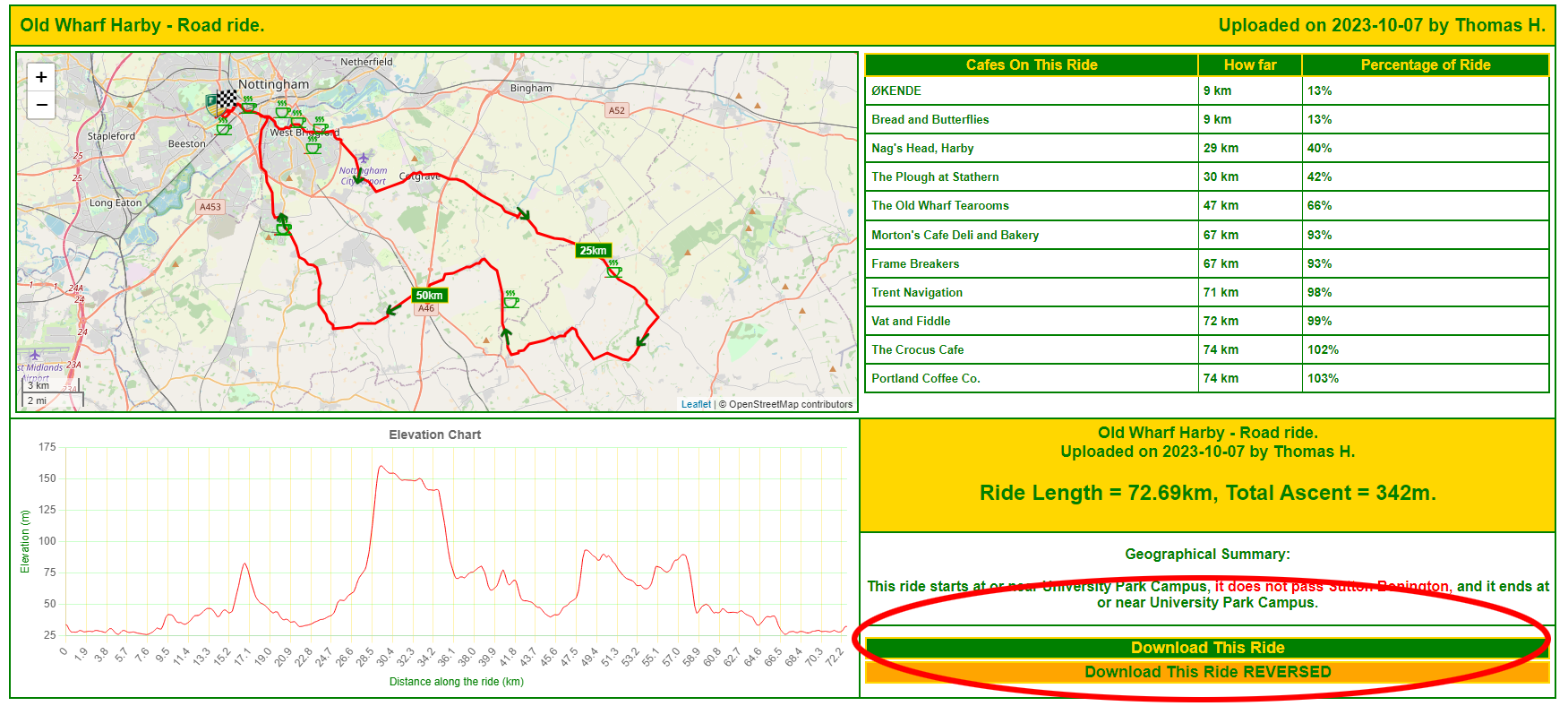
Before you start - browse RideBase and download the ride(s) you want :) |
|
You need to ensure you have an account with Garmin Connect.
Download Garmin Connect (link)
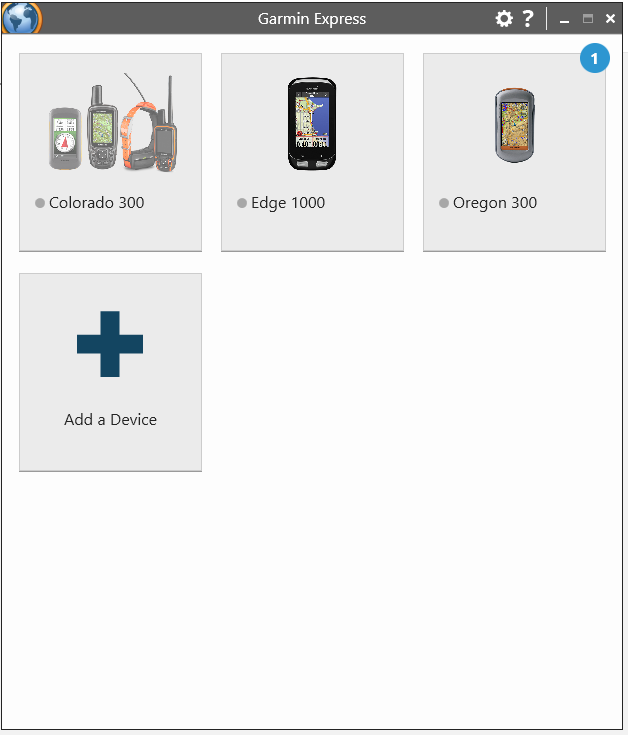
...and make sure that GarminExpress has recognised your device
Download Garmin Express (link)
With the essential software in place, you can proceed.
|
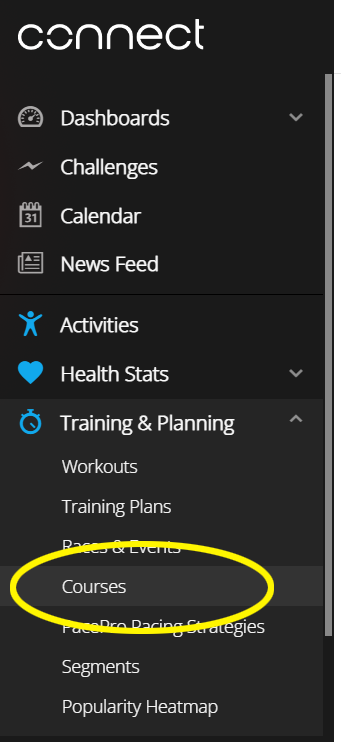 |
In GarminConnect, click "Training and Planning" in the left menu bar, and select "Courses" |
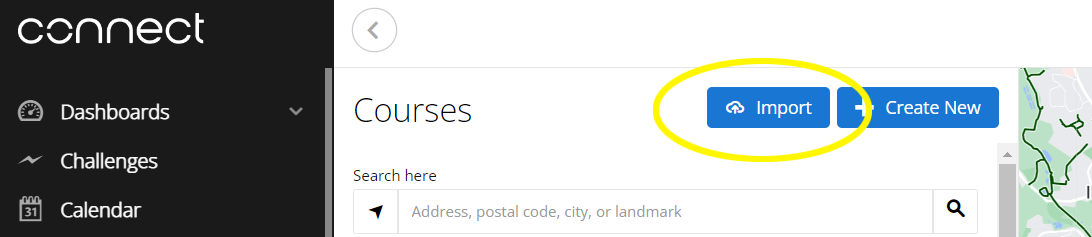 |
In the "Courses" window, select "Import" |
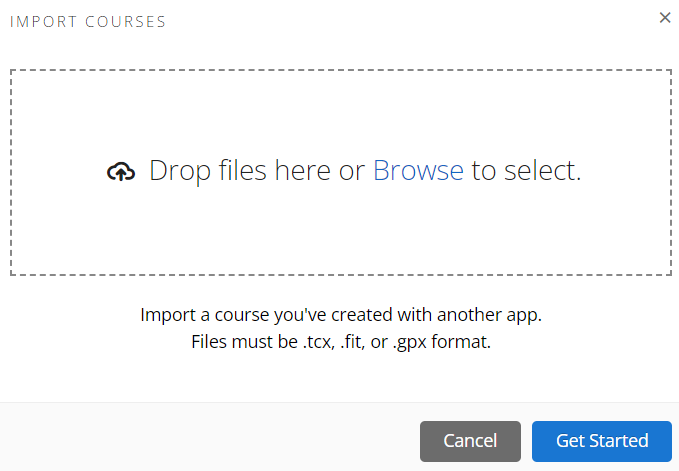 |
Locate the file you downloaded, and click "Get Started" |
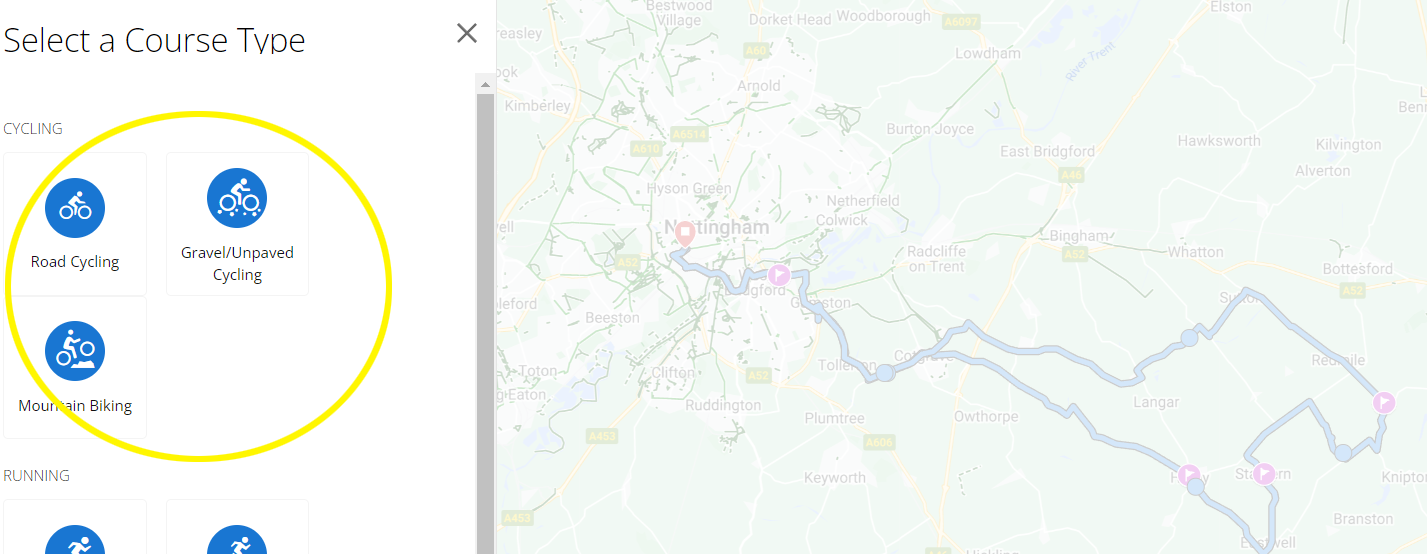 |
Garmin Connect will ask you what type of ride you're uploading.
It's most likely to be "Road Cycling" but you can choose whatever is the most appropriate. |
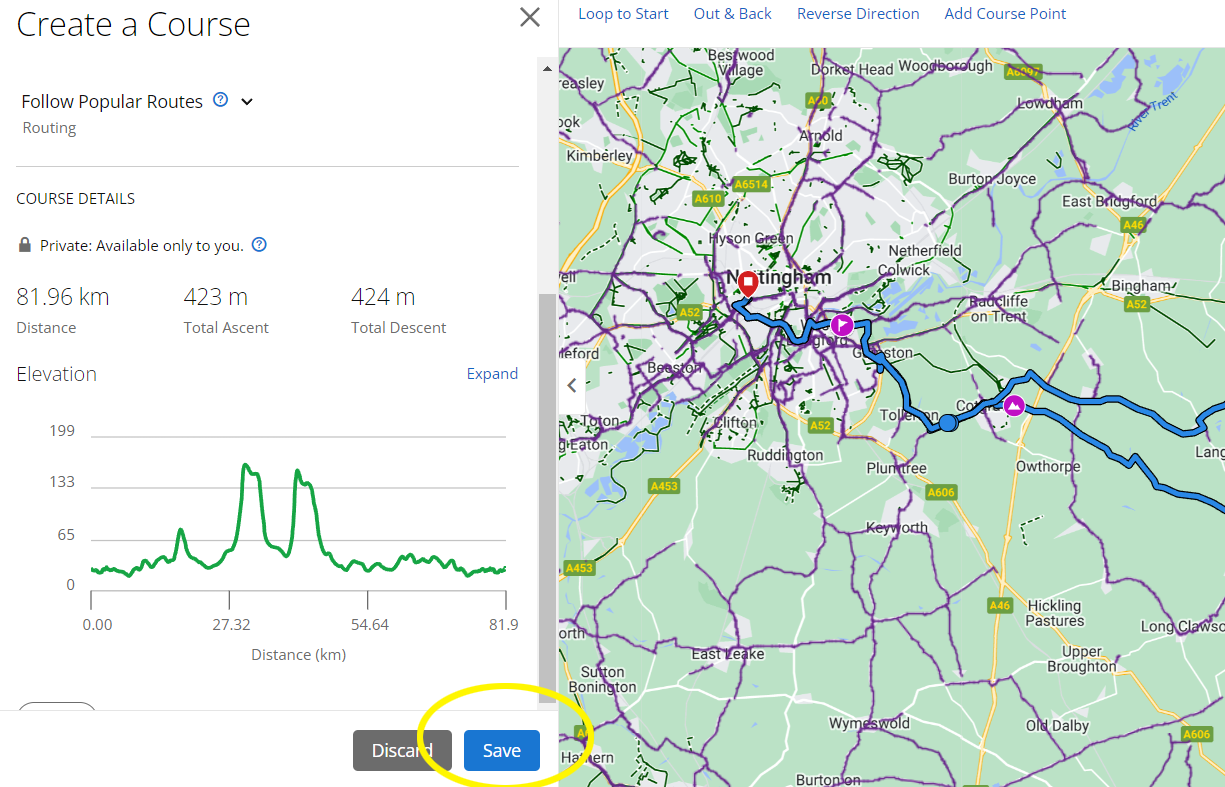 |
When Connect has finished crunching your ride, click "Save". |
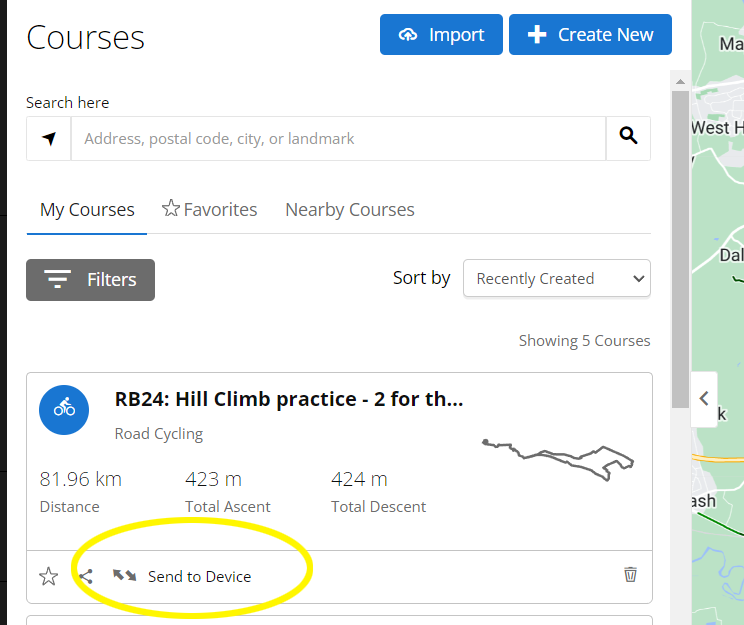 |
You will then be presented with the selection of Courses you have uploaded or created within Connect.
Select the ride you want to send to your Garmin device and click "Send to Device"
|
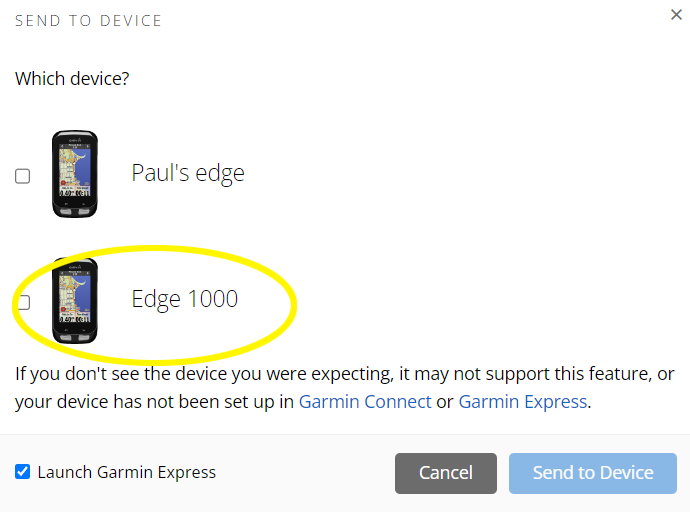 |
If your device(s) are linked to your Connect setup, you'll be offered your device list.
Select the one you want to send the GPX to. |
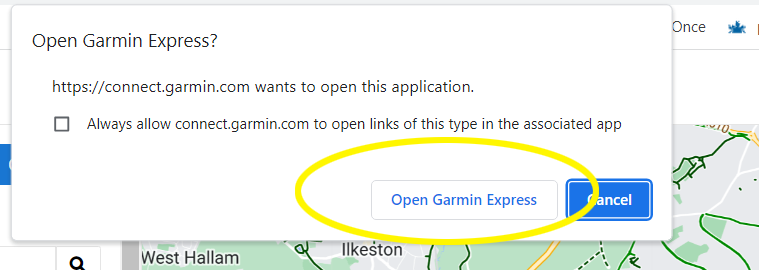 |
Connect will require Garmin Express to open.
If it's the first time you're doing this, you'll have to click "Open Garmin Express".
You can tick the tickbox ("Always allow....") to stop being nagged by this popup in the future.
|
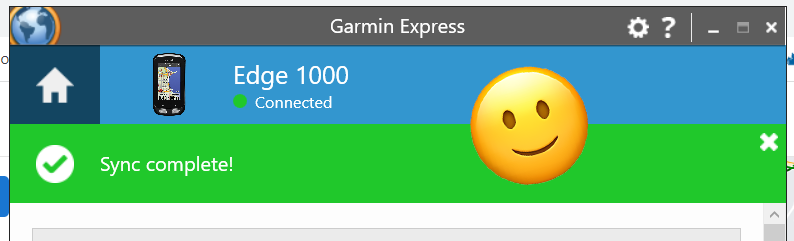 |
Garmin Express will open, immediately sync, and in doing so will transfer your chosen GPX to your Garmin head unit. |
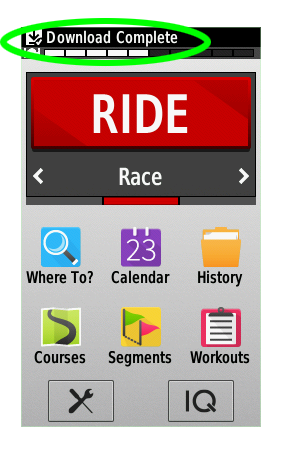 |
You'll see "Download Complete" briefly at the top notification area of your Device, indicating successful transfer of the GPX.
(Pictures shown are from a Garmin Edge1000 - your device may look slightly diffrent but the procedure is the same) |
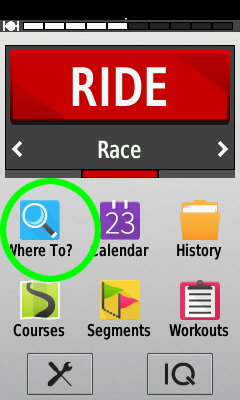 |
To ride that route - touch "Where To?" on your Garmin device... |
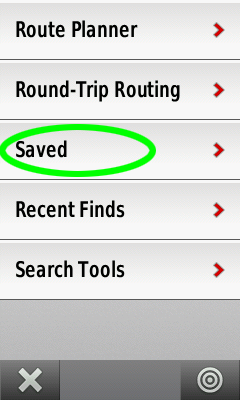 |
Touch "Saved" |
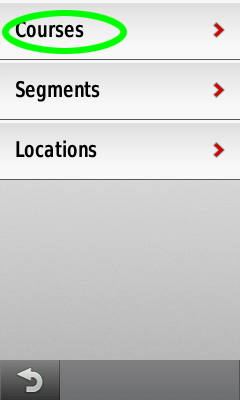 |
Touch "Courses" |
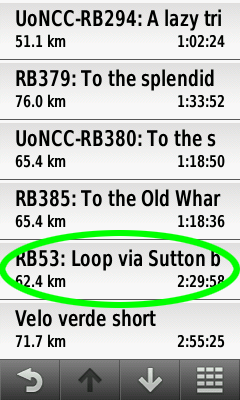 |
Touch the route you want to ride.
RideBase downloaded rides will appear with the prefix "RBxxx" where XXX is the ride reference number in Ridebase.
Check the confirmation email you received when you downlaoded the ride, if you are unsure.
Your RideBase GPX file also includes the cafes relevant to the ride. These will be displayed on the map page of your device.
|
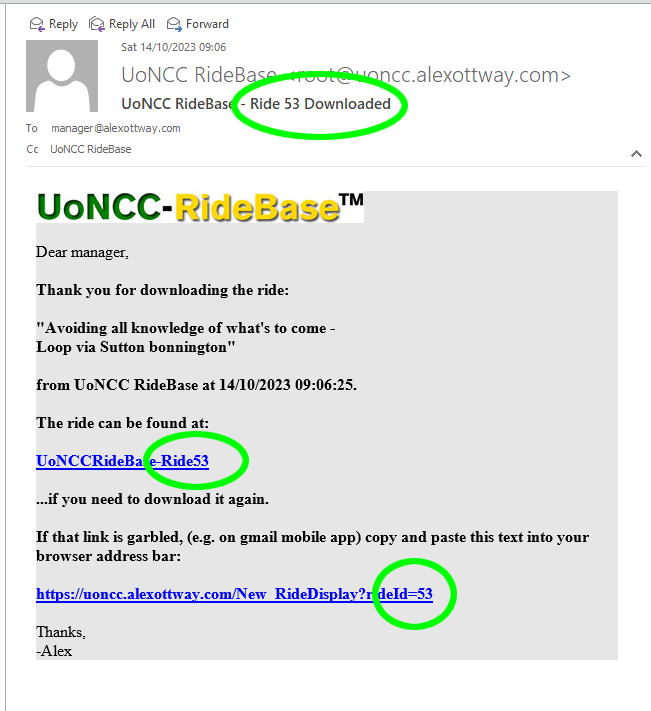 |
[Ride Reference Number in confirmation email - subject and body] |
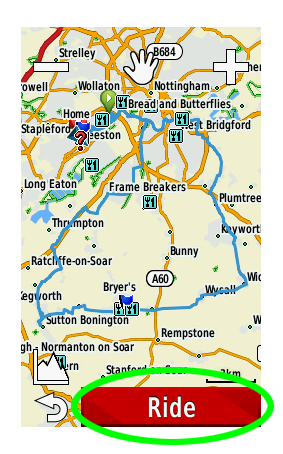 |
Click "Ride" :)
Your Garmin should ask you if you want to "Navigate to the beginning of the Course".
If you NEED to be guided to the absolute start of the route, choose the "Tick" (yes), else choose "X".
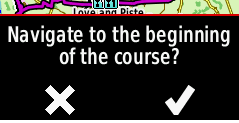
Note - if you choose the "navigate to start" option, and fail to pass the start point, your Garmin will nag you for the next 100 miles to "Make a U-Turn and go to the start" and you'll find it very difficult to enjoy your guided ride
If your Garmin's Navigation setup is right, as soon as you pick up the route at any point, the device will begin routing you from that position.
Have a quick look here - https://www.zozibike.com/settings-for-a-garmin-1000/ for some tips on the under-the-hood settings for your Garmin.
|